Overview
QUI components are reusable, standardized building blocks that ensure consistency and efficiency across Qualcomm's UI engineering efforts.
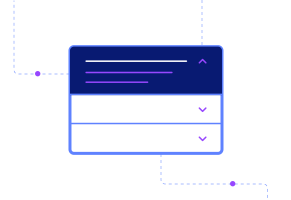
Accordion
Expand and collapse content sections to organize information efficiently.
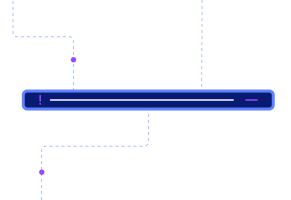
Alert Banner
An alert banner displays important system-wide messages or notifications.
Avatar
An avatar represents a user or entity with an image or initials.
Badge
Color-coded indicators that communicate status, state, or priority at a glance.
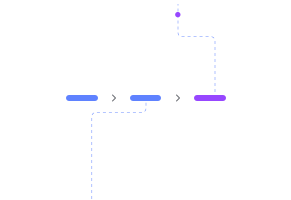
Breadcrumbs
A breadcrumb shows the user's current location within a site hierarchy.
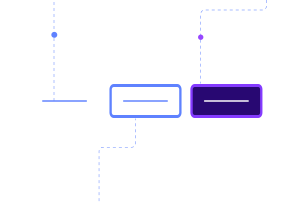
Button Group
A button group combines related actions into a unified control set.

Button
A button triggers an action or event when clicked.

Card
Cards present information in a compact and visually appealing way.
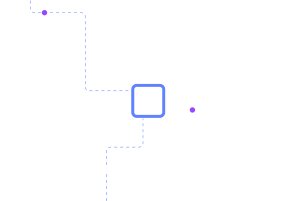
Checkbox
A checkbox allows users to select one or more options from a set.

Collapsible
Toggles the visibility of content sections on demand.
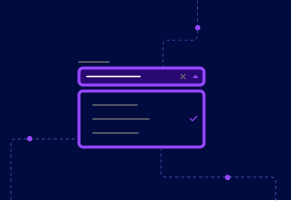
Combobox
Combines a text input with a dropdown list for searchable selection.
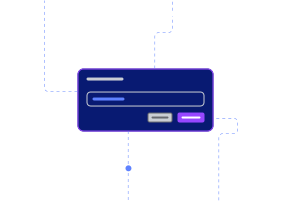
Dialog
A dialog presents focused content or actions in an overlay window.
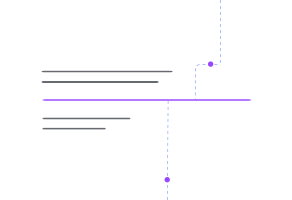
Divider
A divider visually separates content sections or groups.

Drawer
Creates an overlay panel for forms, details, or supplementary information.

Header Bar
Provides a consistent control surface with logo, navigation, and actions.

Icon
Displays visual symbols that represent functions or content types.
Icon Button
Performs an action when clicked using an icon instead of text.
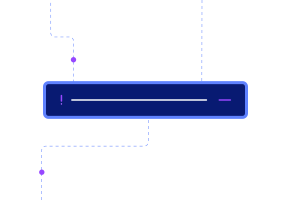
Inline Notification
An inline notification provides contextual feedback within content areas.
Link
A link navigates users to another page or section when clicked.
Menu
A menu presents a list of actions or options for users to choose from.
Notification
A toast notification delivers temporary messages that appear and disappear automatically.
Number Input
A number input restricts entry to numeric values only.
Pagination
Pagination breaks large datasets into navigable pages.
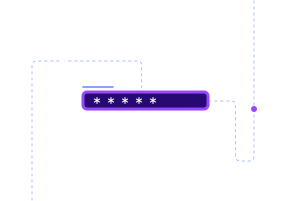
Password Input
A password input lets users securely enter hidden text.
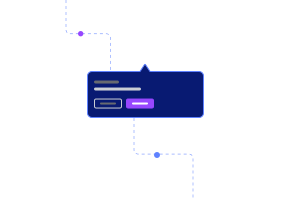
Popover
A popover displays contextual content in a floating container.
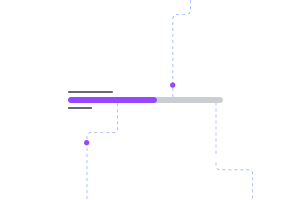
Progress Bar
A progress bar indicates task completion with a horizontal fill.

Progress Ring
A progress ring shows completion status in a circular format.
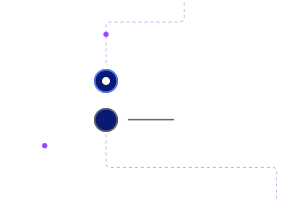
Radio
A radio group lets users select one option from multiple choices.
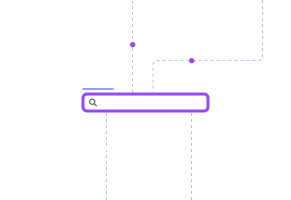
Search Input
A search input enables users to find content by entering queries.

Segmented Control
Presents selectable segments for single or multi-select interactions.
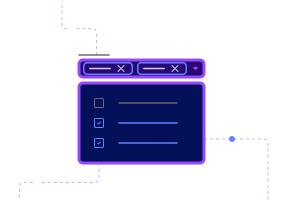
Select
A select dropdown lets users choose one option from a list.

Side Nav
Provides persistent navigation through major application sections.
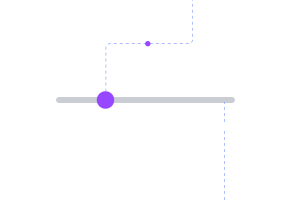
Slider
A slider lets users select values by dragging along a track.

Stepper
A stepper visualizes a group of connected actions or the order of a workflow.
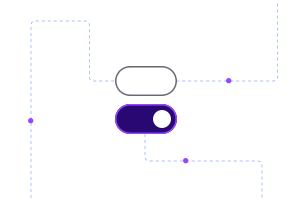
Switch
A switch toggles between two states, like on and off.

Table
Displays structured data with sorting, filtering, and selection features.
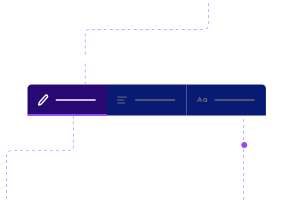
Tabs
A tab organizes content into separate panels that users can switch between.
Tag
A tag labels or categorizes content with removable keywords.
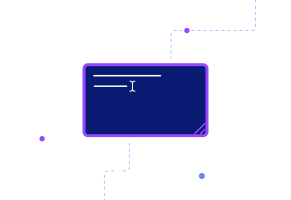
Text Area
A text area provides space for users to enter multiple lines of text.
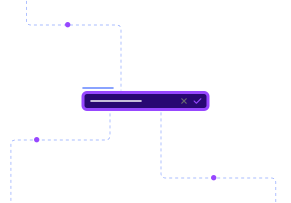
Text Input
A text input allows users to enter a single line of text.

Tooltip
A tooltip shows additional information when users hover over an element.
Tree
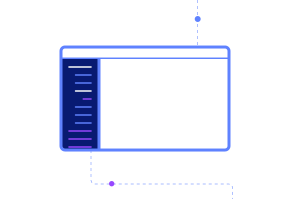
A tree displays hierarchical data in expandable nested levels.